learn-git-milestones
PART 2 - Git Collaboration
Forking, branching, pull requests
Also see: PART 1 - Git Basics
8. Create a branch in Github Desktop
- Save all your work in VS Code and close your files (this is not required to switch branches, but is a good practice so you don’t lose work!). There should be no changes in your repo.
- In Github Desktop, click Fetch and then Pull to make sure you are synced with the remote

- Click the Branch dropdown (pictured above) to see the other branches in this repo. You should see
main(your current branch) and one other. Switch to the other branch. - ✏️ Look in VS Code to see the contents of the other
owen-cool-new-featurebranch. Summarize the contents of thecool-new-featurefile in the completions [8-1] column.
9. Create a branch in Github Desktop
- Use Github Desktop to switch back to the
mainbranch. - Click Branch > New Branch… (or use the dropdown)
- Name the branch (using no spaces or special characters) using your name +
-changes(e.g.owen-changes) - Add a new file (a graphic or text file) with the same name to the repo.
- Commit your changes
- Publish your new branch and changes to the Github server
- Open your repo on https://github.com and find the branches page.
- ✏️ Click on your branch and paste the URL into the completions [9-1] column.
10. Create a pull request
A pull request (PR) is the method to move commits from one branch or repo into another branch or repo. This could be used to sync commits across two branches in the same repository or ask another project owner to merge commits from your fork into theirs. Below, you will use a PR to sync changes from your new branch to the
mainbranch.
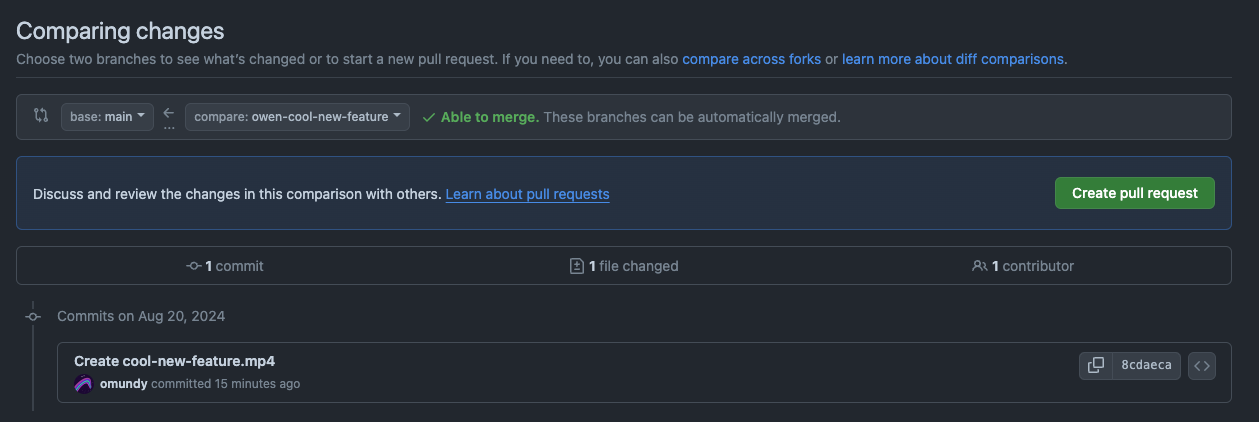
- On your repo Github.com page, click Pull Request.
- Click New pull request.
- Compare changes between
mainand your new branch. You should see at least one commit listed, as well as any new or changed files. - Click Create pull request. Then add a message and click Create pull request again.
- On the next page, click Merge pull requests to merge the commits into your
mainbranch. - ✏️ On your repo Github.com page, click Insights > Network to see the branch flowchart of your project. Paste the link into the completions [10-1] below.
11. Suggest changes to a partner’s project using a PR
- Find a partner and discuss a small improvement to their
first-website(or another) project repo (design, code, functionality). - Fork their repository and clone your fork to your computer.
- Create a new branch with your name + the name of the improvement.
- Make the improvement.
- Commit your work to your new branch in your fork.
- On on your fork on Github.com click Pull requests > New pull request. This will take you to their repo page where you can see a diff comparing your changes in your
fork:repoto their basefork:repo. - ✏️ Create the pull requst as you did above. They will receive an email to accept the change. Copy the link to the pull request to the completions [11-1] table.
- Turn in this assignment on Moodle!
Completions (pt.2)
| Step | Description | Completed |
|---|---|---|
| 8-1 | What is in Owen’s dev branch? | |
| 9-1 | Link to your new branch on github.com | |
| 10-1 | Link to your network graph | |
| 11-1 | Link to the PR you made on a partner’s github.com repo |